

Save voice recordings by the page on the Story Creator.
Step 1: Choose the Page to Record
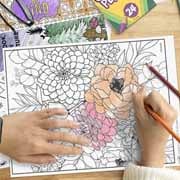
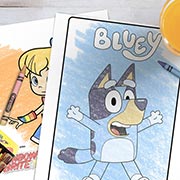
Place your art or coloring page on the Story Creator to record your voice story.
Step 2: Set the Page 1, 2, or 3
Move page indicator switch to 1, 2, or 3, according to the page of the story you wish to record. Every time a page is changed a “beep” sound will play.
Step 3: Start Recording Your Voice
Press the red Record Button to put unit into Record Mode. Indicator Light will turn red.
Step 4: Pick A Sound Location
Find a location on your art that you want to talk about. Press on and hold that location with your finger or marker tip. You will hear a “beep,” and the indicator light will flash red, which signifies that recording has begun. (Hint: The maximum duration of speech at any singular location is 30 seconds.)
Step 5: Save the Recording
Continue pressing that location on your drawing while you speak. When finished talking lift your finger to stop the recording. To record over, simply push the location again and repeat steps 4 & 5.
Step 6: Save the Recording
Make recordings for as many locations on your art as you like! (Hint: Leave a small mark at each recorded location to easily find them later.)
If you have additional questions, we would love to hear from you! Feel free to call or text us at 1-800-CRAYOLA weekdays between 9 AM and 4 PM Eastern Time. If you would prefer to send us an email, visit our contact us page.
Related Questions
Explore answers to common questions, helpful stain removal tips, and creative ideas for making the most of our art supplies and free resources!