Skip to Main Content

Story Creator Instructions

Start creating stories with your child using our Crayola Story Creator instructions. Learn how to use the Story Creator step by step, from setting up the sound tablet to recording, saving, and replaying stories. This guide also includes helpful tips for using Crayola Story Creator features, along with creative inspiration to encourage storytelling. Whether you’re just getting started or looking for new ideas, this resource helps kids and families get the most out of their Story Creator experience together.

Recording A Story on the Crayola Story Creator

Save voice recordings by the page on the Story Creator.

Step 1: Choose the Page to Record

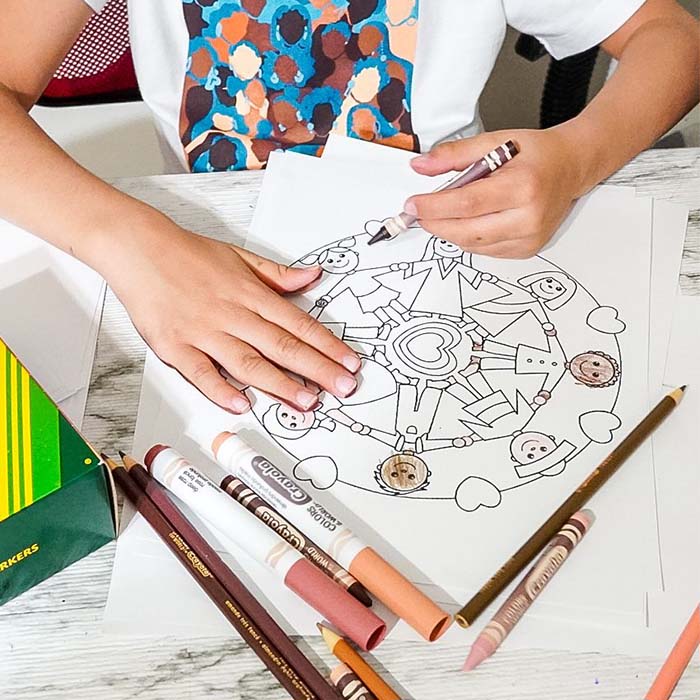
Place your art or coloring page on the Story Creator to record your voice story.

Step 2: Set the Page 1, 2, or 3

Move page indicator switch to 1, 2, or 3, according to the page of the story you wish to record. Every time a page is changed a “beep” sound will play.

Step 3: Start Recording Your Voice

Press the red Record Button to put unit into Record Mode. Indicator Light will turn red.

Step 4: Pick A Sound Location

Find a location on your art that you want to talk about. Press on and hold that location with your finger or marker tip. You will hear a “beep,” and the indicator light will flash red, which signifies that recording has begun. (Hint: The maximum duration of speech at any singular location is 30 seconds.)

Step 5: Save the Recording

Continue pressing that location on your drawing while you speak. When finished talking lift your finger to stop the recording. To record over, simply push the location again and repeat steps 4 & 5.

Step 6: Save the Recording

Make recordings for as many locations on your art as you like! (Hint: Leave a small mark at each recorded location to easily find them later.)

How to Erase A Page on Story Creator

Step 1: Select the Page

Make sure the yellow page indicator switch is set to the page you want to erase.

Step 2: Erase

Press and hold the red and orange buttons at the same time until you hear the "trash dumping" sound.

Step 3: Repeat

Repeat for each page you want to erase.